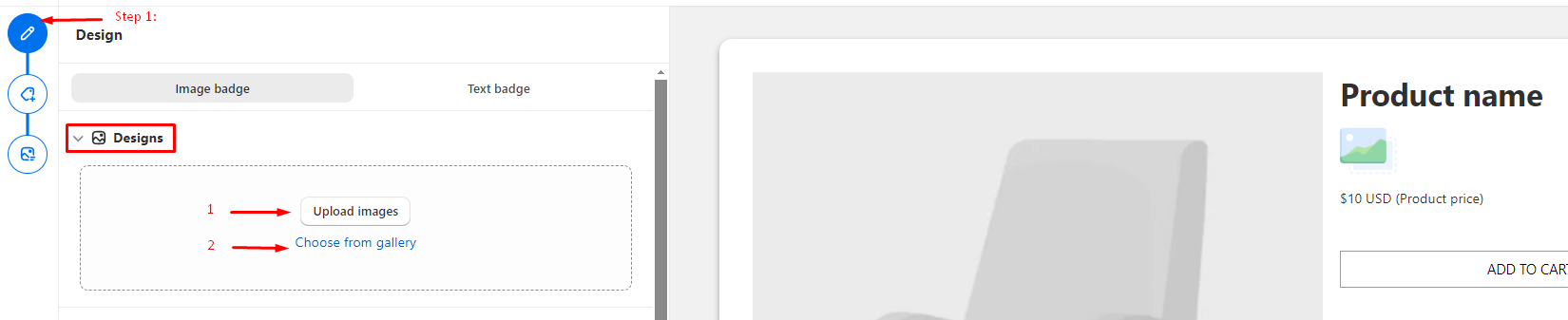
# Step 1: Select/Design Badges

## 1. Choose/ Upload Designs

### <mark style="background-color:blue;">1.1. Image Badge:</mark>

In the **Image Badge** section, you will have 2 options:&#x20;

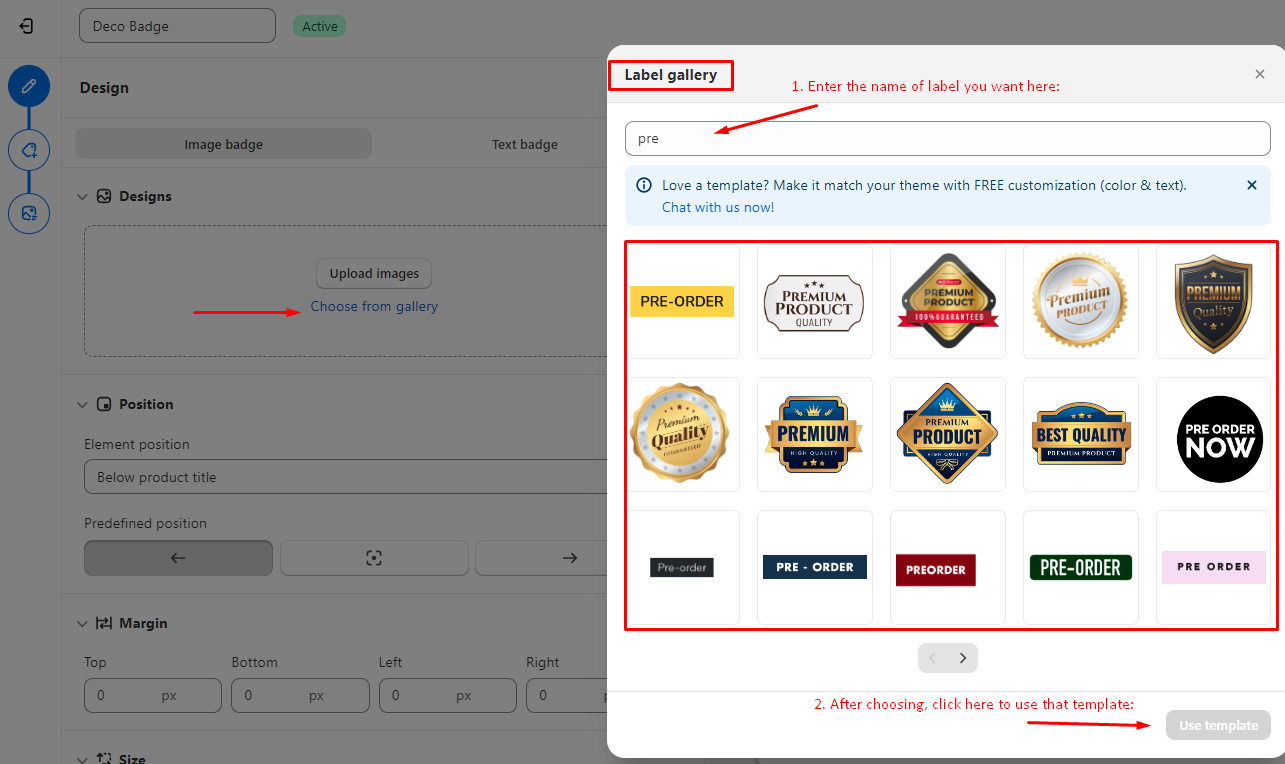
* Click  ***Upload Images*** to upload your own designs, or ***Choose from gallery*** to use DECO templates

<figure><img src="https://1629968136-files.gitbook.io/~/files/v0/b/gitbook-x-prod.appspot.com/o/spaces%2FRmU1M7NimpYER8YFK5kZ%2Fuploads%2F6SfQmeJiYZ6AyTeyhuxo%2Fimage.png?alt=media&#x26;token=fda11b29-5fdf-4959-aefe-0c1a0d3da51d" alt=""><figcaption></figcaption></figure>

* If you click on ***Choose from gallery*** > you can find kinds of template you want by *entering its name* (e.g. Sale, Pre, Free, %, etc) > Click on **"*****Use template*****"** to use it.

<figure><img src="https://1629968136-files.gitbook.io/~/files/v0/b/gitbook-x-prod.appspot.com/o/spaces%2FRmU1M7NimpYER8YFK5kZ%2Fuploads%2F1xfSqE8KAhXg5XMsJrcs%2Fimage.png?alt=media&#x26;token=8b0f344d-6043-4dc2-a057-9f7e2fe91c12" alt=""><figcaption></figcaption></figure>

### <mark style="background-color:blue;">1.2. Text Badge</mark>

In text badge, you can choose:&#x20;

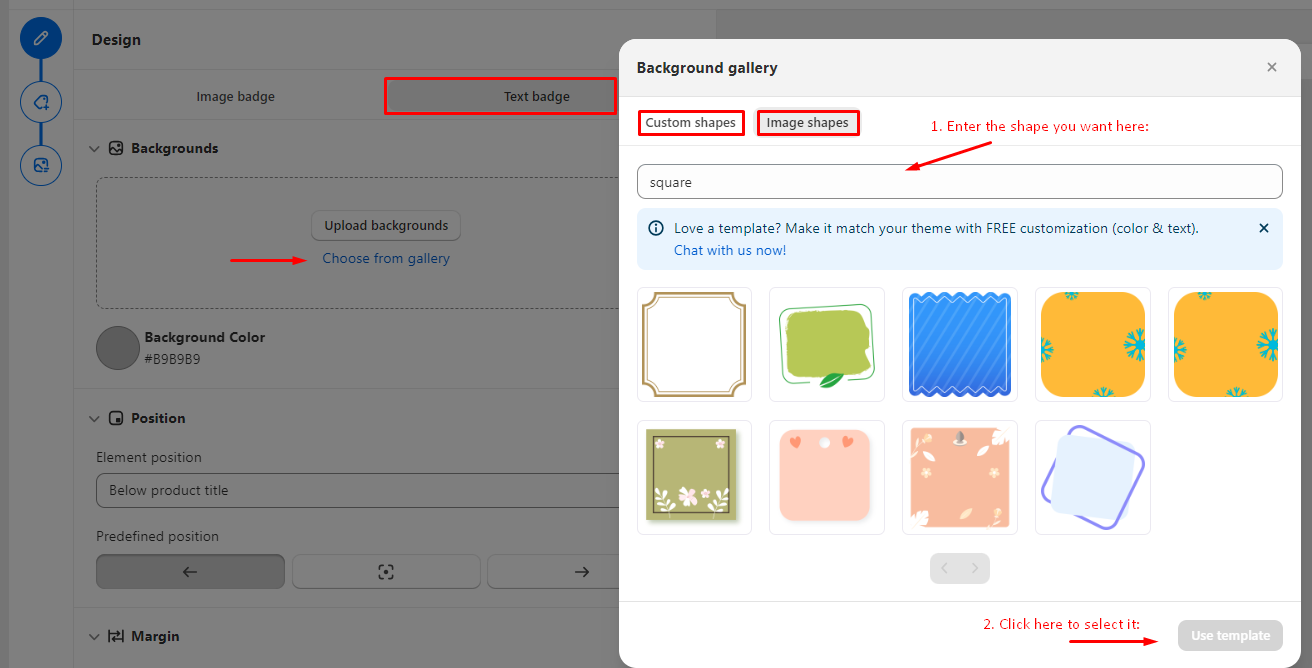
* **Upload background** > to upload your own shape/ design&#x20;
* **Choose from gallery** > to use DECO shape&#x20;

If you use DECO shape, you can choose color for that background by **clicking onto the round button** in ***"Background Color"***&#x20;

**NOTE:** If your text badges don't look good as you expected, chat with us for free customization. 🥰

<figure><img src="https://1629968136-files.gitbook.io/~/files/v0/b/gitbook-x-prod.appspot.com/o/spaces%2FRmU1M7NimpYER8YFK5kZ%2Fuploads%2FJCrFeUIEGSxX5fvTZAC3%2Fimage.png?alt=media&#x26;token=bec4401f-d88b-4697-8f1d-bb4d7fb6e503" alt=""><figcaption></figcaption></figure>

## 2. Choose Position + Margin + Size

### <mark style="background-color:blue;">2.1. Position</mark>

You can <mark style="background-color:orange;">**choose 1 in 3**</mark> <mark style="background-color:yellow;">element</mark> positions:&#x20;

* ***Below product title***
* ***Below product price***
* ***Below product image***

<figure><img src="https://1629968136-files.gitbook.io/~/files/v0/b/gitbook-x-prod.appspot.com/o/spaces%2FRmU1M7NimpYER8YFK5kZ%2Fuploads%2FJE4EwpG5vp5Vj4KDCXKZ%2Fimage.png?alt=media&#x26;token=5b0bcdb1-a38f-4c7a-a93c-fc09cf6ceef2" alt=""><figcaption></figcaption></figure>

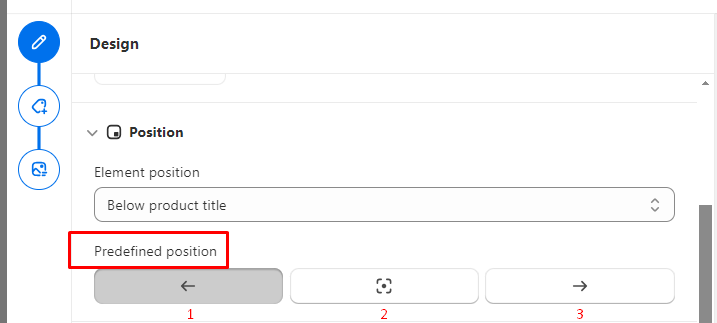
Besides, you can also choose 1 in 3 dimensions your badge will display: Left, Middle or Right in ***"Predefined Position"***

<figure><img src="https://1629968136-files.gitbook.io/~/files/v0/b/gitbook-x-prod.appspot.com/o/spaces%2FRmU1M7NimpYER8YFK5kZ%2Fuploads%2FHX7aswu0UwhJLJuGUoUc%2Fimage.png?alt=media&#x26;token=f130db01-c380-4caf-bbb5-40d143f462f4" alt=""><figcaption></figcaption></figure>

### <mark style="background-color:blue;">2.2. Margin</mark>

* You can custom the predefined position of your badge by adjusting the margin

<figure><img src="https://1629968136-files.gitbook.io/~/files/v0/b/gitbook-x-prod.appspot.com/o/spaces%2FRmU1M7NimpYER8YFK5kZ%2Fuploads%2FDajBSFPJTiaYACMZrUk7%2Fimage.png?alt=media&#x26;token=2dbf732c-da8a-4e5b-a49b-04e1775263de" alt=""><figcaption></figcaption></figure>

### <mark style="background-color:blue;">2.3. Size</mark>

* You can choose 1 in 3 basic sizes: **S, M, L** or **"Customize size"**&#x20;

**NOTE**: Now you can ***customize badge size separately** between* ***Collection page & Product page***, and between ***Desktop & Mobile*** by clicking on those buttons as below:

<figure><img src="https://1629968136-files.gitbook.io/~/files/v0/b/gitbook-x-prod.appspot.com/o/spaces%2FRmU1M7NimpYER8YFK5kZ%2Fuploads%2F1UHgVY0MaInLZRwrvpbK%2Fimage.png?alt=media&#x26;token=0269075c-68db-497b-a65d-79b84cd22bd9" alt=""><figcaption></figcaption></figure>

## 3. Custom text +text color + Border( Only for Text Badge)

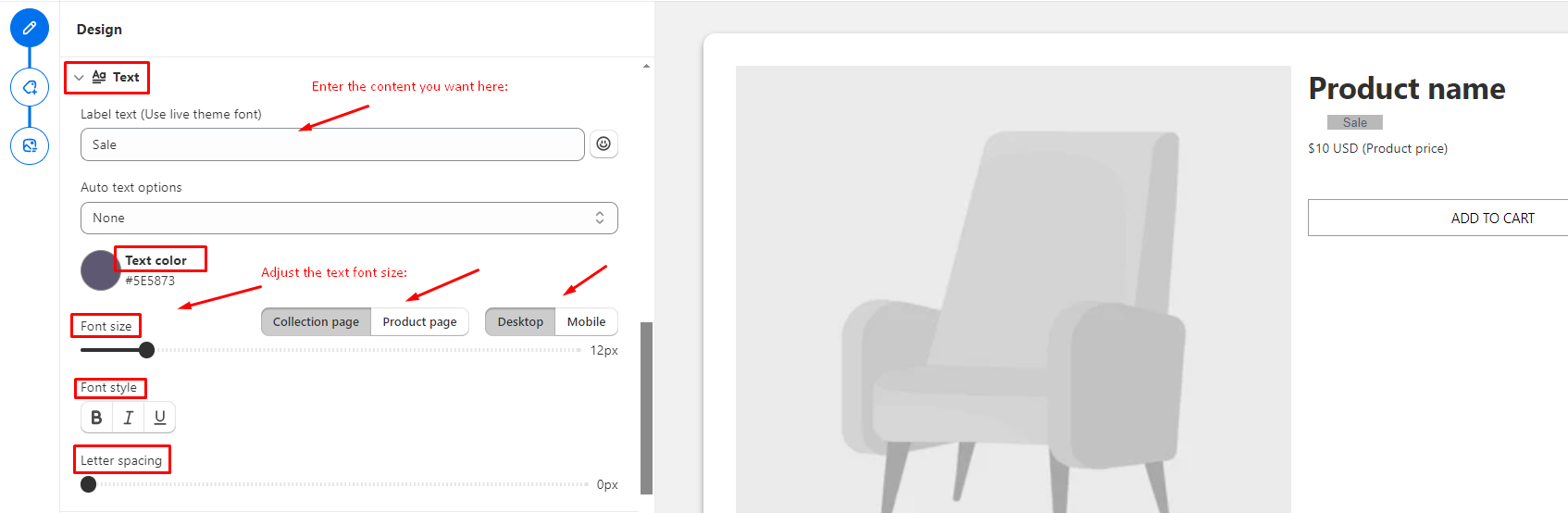
* You can write whatever content you want to show on your badge in the ***"Label text" box*** as below
* Besides, you can choose text color by ***clicking on the color round button***, then **choose from the color picker,** or **copy the color code, and paste it** to the search box to apply it

NOTE: The **text font size will be different on mobile & desktop version for some devices,** so you can ***adjust it separately*** by clicking onto the ***"desktop"*** and ***"mobile"*** button.

<figure><img src="https://1629968136-files.gitbook.io/~/files/v0/b/gitbook-x-prod.appspot.com/o/spaces%2FRmU1M7NimpYER8YFK5kZ%2Fuploads%2FCsPoEokNSZLosX6WtHTC%2Fimage.png?alt=media&#x26;token=3977875f-2164-46d6-b79c-5b4befefd4b3" alt=""><figcaption></figcaption></figure>

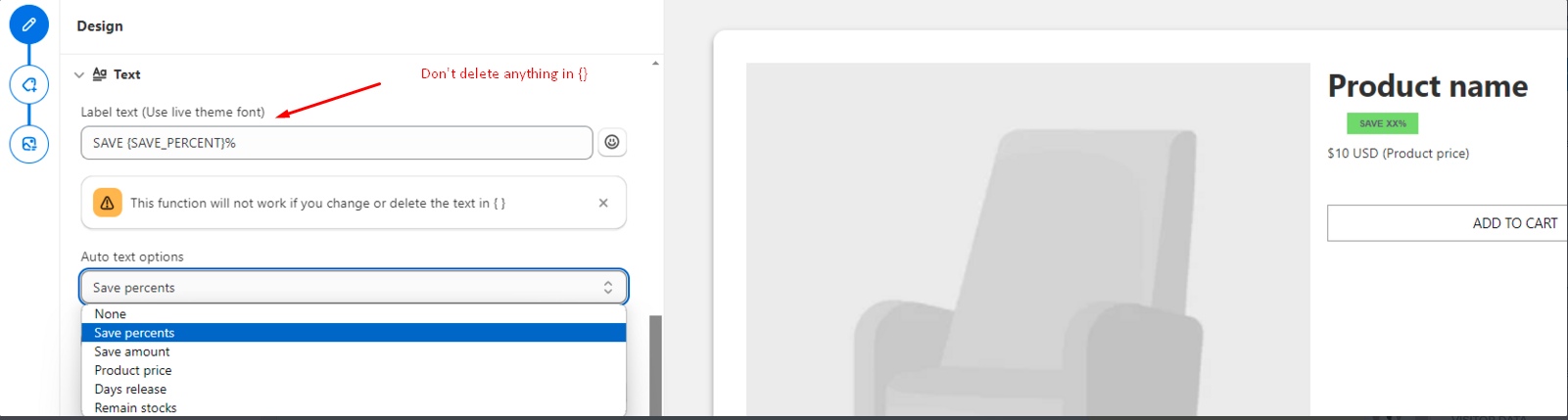
* Auto text options: Here are automatic condition for your badges.&#x20;

Ex: ***Save percents***, SAVE {SAVE\_PERCENT}% (you can delete anything to make it most suitable for your preference, but ***please don't delete anything within {}***. E.g. {SAVE\_PERCENT}%

> this will automatically calculate the discounts of products, and display for your badge(e.g. Save 55%)

<figure><img src="https://1629968136-files.gitbook.io/~/files/v0/b/gitbook-x-prod.appspot.com/o/spaces%2FRmU1M7NimpYER8YFK5kZ%2Fuploads%2FtayFBpwcECLJQMhCNcdL%2Fimage.png?alt=media&#x26;token=3000f61b-3346-44a5-861e-90626b5e5982" alt=""><figcaption></figcaption></figure>

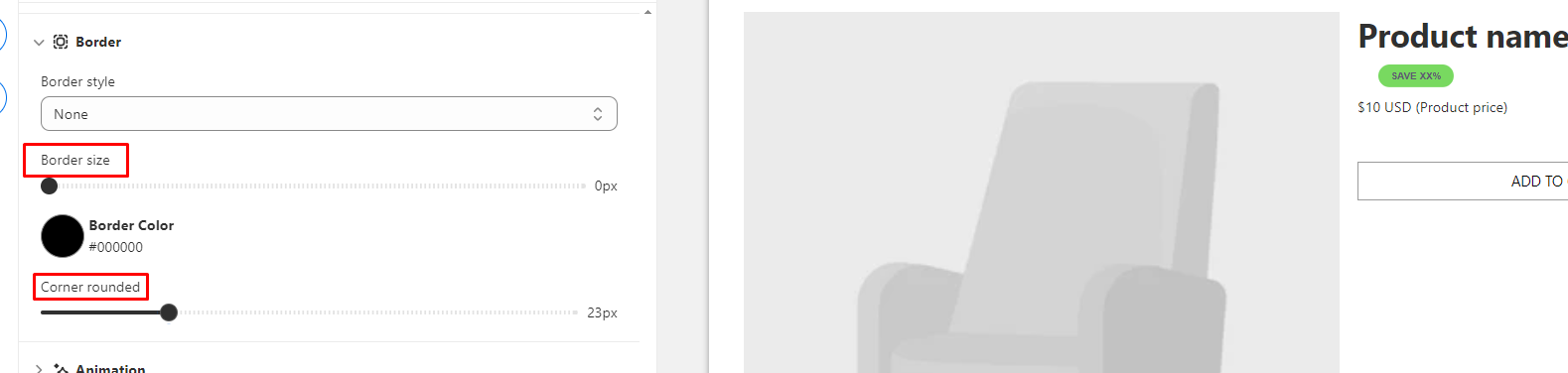
## <mark style="background-color:blue;">3.1. Border</mark>

With this, you can choose 1&#x20;

<figure><img src="https://1629968136-files.gitbook.io/~/files/v0/b/gitbook-x-prod.appspot.com/o/spaces%2FRmU1M7NimpYER8YFK5kZ%2Fuploads%2Ftobj28DxPjFlbgxmAS80%2Fimage.png?alt=media&#x26;token=3a5b3f67-45b2-4d16-8762-87bf6529eea7" alt=""><figcaption></figcaption></figure>

## 4. Animation + Rotation + Opacity + CSS code

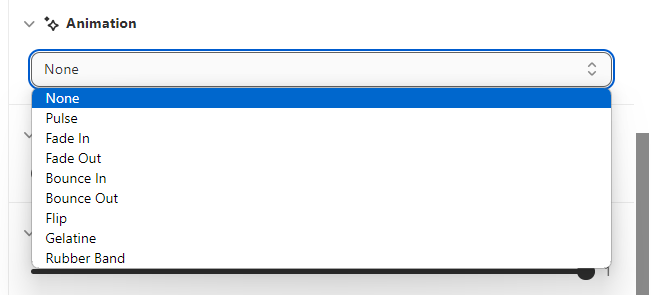
### <mark style="background-color:blue;">4.1. Animation</mark>

* You can choose 1 in animation types here, it will also be reflected on the preview on your right side

<figure><img src="https://1629968136-files.gitbook.io/~/files/v0/b/gitbook-x-prod.appspot.com/o/spaces%2FRmU1M7NimpYER8YFK5kZ%2Fuploads%2FX7yB771gKAWIXMS9HecH%2Fimage.png?alt=media&#x26;token=a214bb48-d8b4-4216-8f91-ccb941788f79" alt=""><figcaption></figcaption></figure>

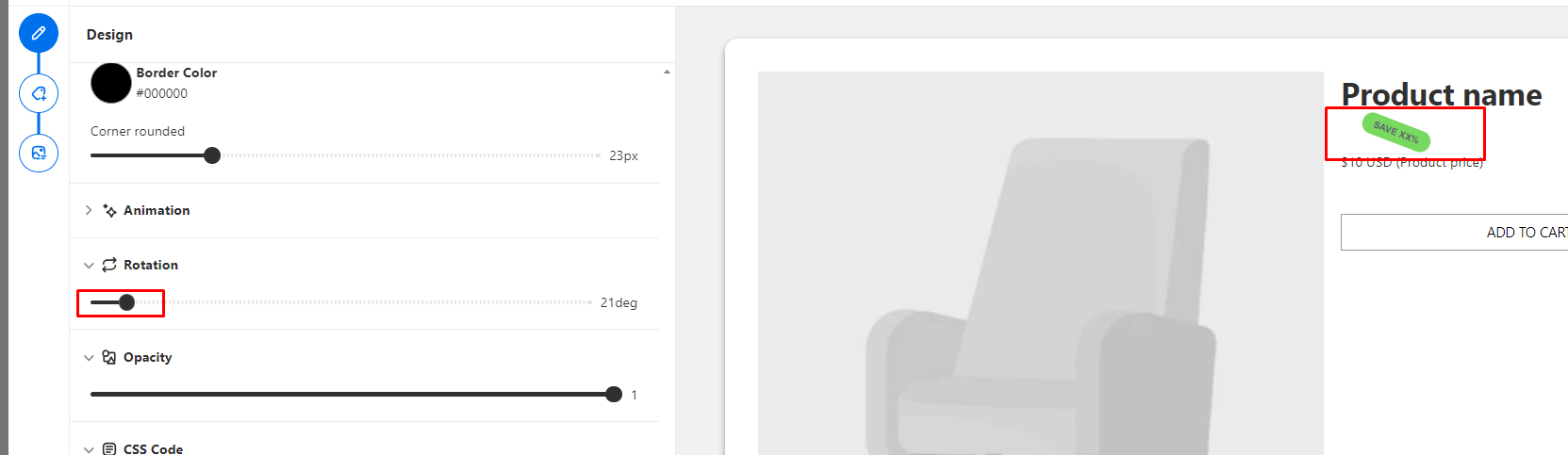
### <mark style="background-color:blue;">4.2. Rotation</mark>

* You can drag the button to your preferred degree as you like, it will display on your store as in the preview

<figure><img src="https://1629968136-files.gitbook.io/~/files/v0/b/gitbook-x-prod.appspot.com/o/spaces%2FRmU1M7NimpYER8YFK5kZ%2Fuploads%2FvotViciFXcCNtrndriAl%2Fimage.png?alt=media&#x26;token=181a29df-8e9e-490b-8134-741c7e620994" alt=""><figcaption></figcaption></figure>

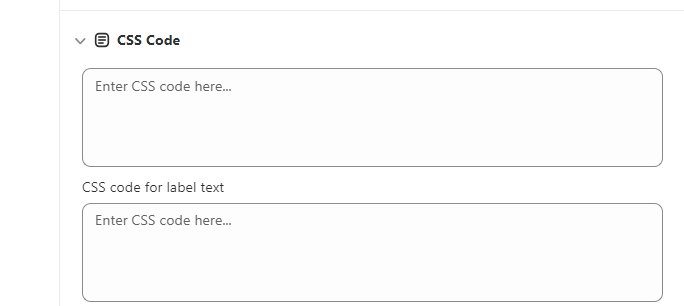
### <mark style="background-color:blue;">4.3. CSS Code</mark>

* If you have your dev team, this is where your dev team can add the code to custom your label
<figure><img src="https://1629968136-files.gitbook.io/~/files/v0/b/gitbook-x-prod.appspot.com/o/spaces%2FRmU1M7NimpYER8YFK5kZ%2Fuploads%2F6KCnlGgCDWFva3vV227U%2Fimage.png?alt=media&#x26;token=9a0235de-11ca-4f13-9c4a-908d43f79702" alt=""><figcaption></figcaption></figure>